I gave a local AI one prompt. 1h 45m later it had built a voxel pagoda garden

Local AI experiment

I gave a local agent one hard prompt, “Design and create a very creative, elaborate, and detailed voxel art scene of a pagoda in a beautiful garden with trees, including some cherry blossoms. Make the scene impressive and varied and use colorful voxels. Use whatever libraries to get this done but make sure I can paste it all into a single HTML file.”, and went about my evening. An hour and 45 minutes later it had built a complete, interactive 3D Japanese garden in a single HTML file. All of it ran on one gaming desktop.

Live demo, running right here. Drag to orbit, scroll to zoom, press D for dusk. Open it full screen for the best view.

1h 45mwall-clock, start to last edit
~180tool calls (estimated)
34.9 KBone self-contained index.html
1context compaction, survived
0console errors on live load

What it built

The scene is a 72 by 72 block island of roughly 27,000 voxels, generated from a seed so you can regrow a different garden with one click. It has a multi-roof pagoda on a stone plinth, a koi pond with an open-arch red bridge, a waterfall, cherry, maple, pine and bamboo, stone lanterns, a torii gate and stepping-stone paths. On top of the geometry sit falling petals, swimming koi and a day-to-dusk cycle with a custom sky shader, stars, fireflies and lanterns that light up at night.

It also ships its own controls: Day/Dusk, Petals, Auto-rotate, two camera presets, Regrow and a PNG export. The model was not asked for any of that. It was asked for a scene.

The setup

Hardware

A normal desktop: Core i5-13600K, 64 GB DDR4 and a single RTX 5070 Ti with 16 GB of VRAM. No cloud fallback was needed.

How the time was spent

Time (EEST)Phase
22:22 – 22:30Project folder, HTML template and a generator script
22:30 – 23:30Scene build and iteration: pagoda, garden, trees, water, bridge, waterfall
23:30 – 00:02Atmosphere polish: sky shader, sun sprite, fog and dusk color grading
00:02 – 00:06Verification passes: pond and bridge close-ups, voxel probes
00:06 – 00:07Final polish: open-arch bridge, taller waterfall, horizon haze

Times are reconstructed from file timestamps, because no start stamp was taken. October 11 to 12, 2026.

The part I find most interesting: it checked its own work

Most of those 180 tool calls were not writing code. They were a loop, repeated over and over:

patch the file→headless test→screenshot→local vision review→patch again

The checks were concrete. A syntax check, headless generation across three seeds, a live browser load, and programmatic probes of exact voxel coordinates to confirm that the bridge deck, arch, railing, waterfall and koi really exist where they should. The screenshots were reviewed by the vision encoder of the same local model.

The run also crossed the 120K context window once and was compacted. It carried on cleanly because the verification results had been written to files in the workspace and could be re-probed, not just remembered in the conversation. That is a habit worth copying when you work with any long-running agent.

What is not perfect

  • The far horizon of the lake is a little too crisp at dusk.
  • The lantern lights pool visibly if you zoom in close at night.
  • A programmatic probe proves a thing is there, not that it looks right. I would still look at the final scene with my own eyes, and so should you.
  • No token counters were captured during the run, so there is no throughput figure here. This is one task on one run, a demonstration and not a benchmark.
Links

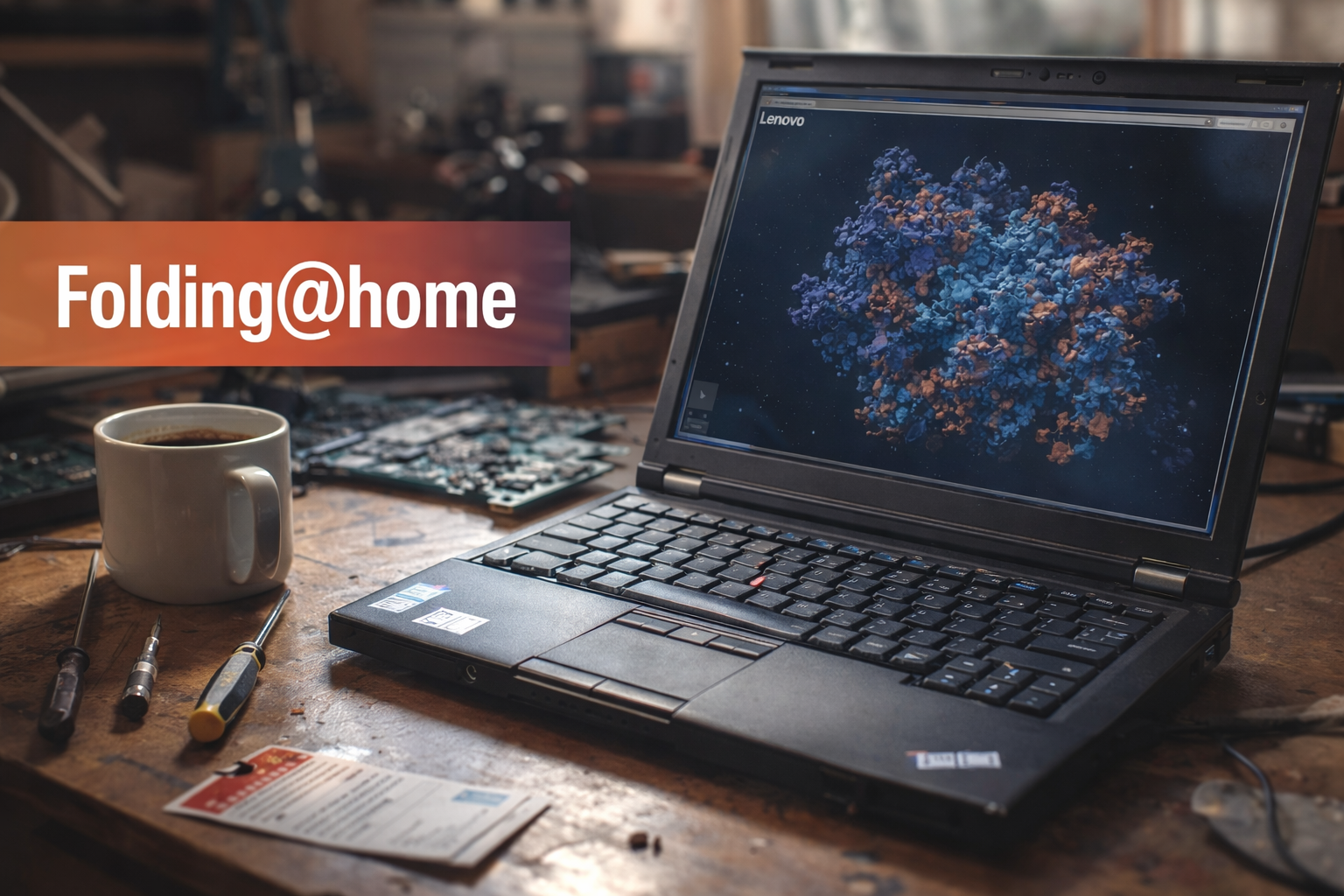
A Small Throwback to Folding@home

Before crypto, before AI hype, before GPUs became financial instruments, there was a time when spare CPU cycles quietly went to science.

In the early 2000s, whenever I repaired a PC or laptop (which was 99.5% pro bono), I used to do one extra thing:
install Folding@home.

I’d explain to the owner that when their computer was idle, it would donate a tiny bit of electricity and processing power to medical research. Protein folding. Cancer. Alzheimer’s. Real problems. Real science. Electricity was cheap, machines were slow, and nobody expected anything in return – except the quiet satisfaction of contributing.

It wasn’t flashy. There were no tokens, no dashboards promising ROI, no buzzwords. Just a screensaver showing abstract molecules twisting in silence, doing something meaningful while the machine waited.

Fast forward to today. GPUs cost a fortune, watts are measured like fuel, and almost every spare cycle is expected to justify itself financially. And yet… Folding@home is still there. Smaller, quieter, a bit forgotten – but still running. Still doing the work.

I recently stumbled upon my old stats and noticed something funny: I was ranked #1 in my team by points, despite having fewer completed work units. Turns out the system always rewarded impact, not volume. Faster machines, harder simulations, better use of time. That feels oddly consistent with the whole philosophy back then.

No hype. No shortcuts. Just doing the job well.

This isn’t really about idle computing any more.
It’s about a broader shift in mindset.

Back then, the idea that many people could contribute small, invisible pieces toward a shared goal felt natural. There was no expectation of reward, no personal branding, no monetization layer attached to every action. The value was in the collective outcome, not the individual gain.

Today, even our spare resources – time, attention, compute – are framed almost exclusively through profit. If something doesn’t pay, scale, or signal status, it’s often dismissed as naïve or inefficient. In that environment, projects like Folding@home don’t disappear because they stopped mattering, but because the idea of a common, unpaid effort has quietly fallen out of fashion.

Maybe that’s the real loss.
Not idle cycles, but the assumption that doing something together, for no personal return, was once enough.

“As Tolkien wrote, it is often the small, unseen acts of ordinary people that keep the darkness at bay — and perhaps they still can.”

Ode to the 3D Printer in the Sunlit Workshop

My new Creality K2 Plus has been working overtime lately, and between the scent of PLA and the soft sound of the extruder, I found myself inspired 😛 This little poem is a love letter to that moment — where technology meets sunlight and imagination.

In the hum of gears and quiet clicks,
the printer sings — a hymn of molten dreams.
Filament threads through polished brass,
a river of corn and code intertwined.

Outside, the sun spills gold through glass,
balcony air dances with faint sweet resin.
The scent — half nature, half invention —
a whisper of fields reborn as form.

Here, man and machine conspire in light,
to summon shapes from nothing but heat and will.
Each layer, a heartbeat; each pause, a breath —
proof that creation still hums in mortal hands.

And when the print is done,
and the room falls quiet but alive,
it smells a little of corn,
and a lot like the future.

Happy printing to you all 🙂

When Windows Backup (7) Insists on Including the Wrong Drive: A Deep Dive

I recently spent far too many hours wrestling with an odd behavior in Windows 11:
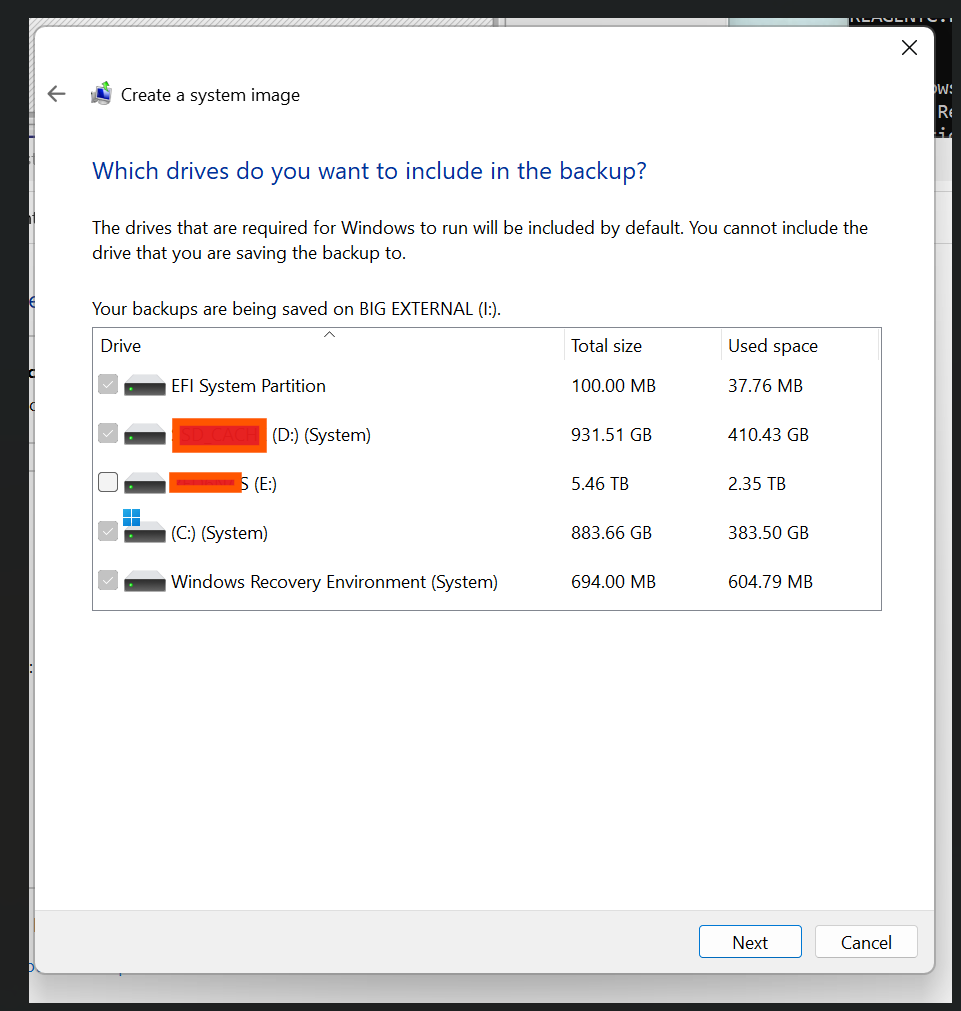
when creating a System Image Backup with the built-in Backup and Restore (Windows 7) tool, Windows insisted on including my D: drive as part of the “system image.”

The problem?

  • My OS lives on C: (NVMe).

  • EFI and Recovery partitions are correct.

  • D: is just a data/games disk.
    Yet the backup wizard grayed it out as “System” and demanded to include it.


Chasing Ghosts

Like any good sysadmin, I went through the usual suspects:

  • BCD (Boot Configuration Data):
    bcdedit /enum all → no references to D:.

  • VSS (Volume Shadow Copy):
    vssadmin list shadowstorage → nothing allocated on D:.

  • Mount points and recovery:
    mountvol showed C:, EFI, and Recovery only.
    WinRE was on the right recovery partition.

Still, the backup wizard stubbornly listed D:.

The Smoking Gun: CBS Registry Entries

After some deeper digging, I hit the jackpot:
the Component Based Servicing (CBS) registry hive contained hundreds of stale entries like:

HKEY_LOCAL_MACHINE\SOFTWARE\Microsoft\Windows\CurrentVersion\Component Based Servicing\Packages\...
InstallLocation REG_SZ \\?\D:\wd\compilerTemp\...

At some point, Windows Update had used D: as a scratch/temp directory.
CBS dutifully recorded those paths as part of the “system.”
So when Backup scanned the servicing database, it decided D: must be critical.


The Fix

The key was forcing CBS to rebuild itself:

DISM /Online /Cleanup-Image /StartComponentCleanup
DISM /Online /Cleanup-Image /RestoreHealth
sfc /scannow


Patience paid off: it eventually finished, cleaned up the junk, and a reboot later…

The backup wizard no longer forced D: as “System.”

Running:

DISM /Online /Cleanup-Image /CheckHealth

Great success!

Lessons Learned

  1. Windows Backup (Windows 7) is ancient.
    It keys off CBS, BCD, and a variety of heuristics. If anything in your system state points to a drive, it might get flagged as “System.”
  2. It’s not always just boot data.
    Services installed on another drive, drivers, scheduled tasks, even leftover registry entries can make a disk appear “critical.”
  3. The only truth in Windows is the Registry.
    On Linux, you’d search /etc/.
    On Windows, if you want the real answer to “why does the OS think this drive matters?” →
    grep the damn registry.
reg query HKLM /f "D:\" /s
  1. That’s how I found the culprit.

Should You Bother?

Honestly, Microsoft hasn’t touched this tool in years.
For imaging, you’re usually better off with Veeam Agent which has a free full blown community edition! , https://archive.org/details/Macrium_Reflect_Free_Latest, or some other recent tool. They let you pick exactly which partitions matter.

But if you’re stubborn (like me) or want the satisfaction of making Windows behave:

  • clean up CBS,
  • check the registry,
  • and remember: if a disk shows up as “System,” don’t just trust Disk Management — chase the references until you kill them.

Final Word

This bug wasn’t about bootloaders or UEFI quirks. It was about Windows Update leaving crumbs in CBS.
Once those registry ghosts were gone, Backup behaved.

So, next time you’re fighting Windows Backup…
Search the registry first. Always.

That’s All Folks 😀